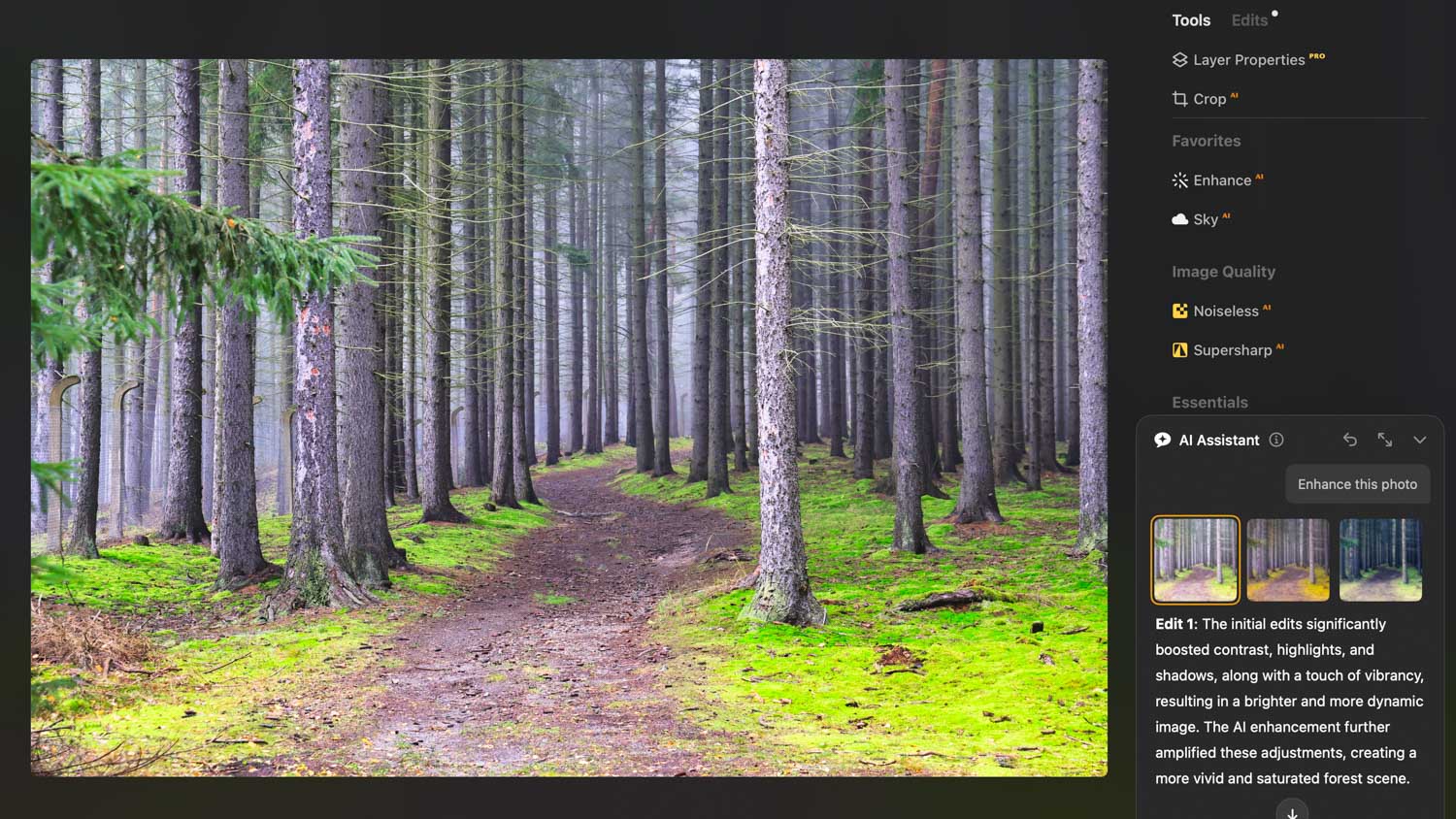
At first glance, it might look like just another boring AI photo editing tool. But the AI Assistant in Luminar Neo offers something different and actually original: it analyzes your photo and suggests how to improve it.
Most importantly, it leaves the final creative touch entirely up to you. It’s a fantastic approach and, more importantly, it shows a new way to integrate AI into the creative process. In the end, this isn’t even just about Luminar Neo—it’s a glimpse into where the future of photo editing is headed.
Why the AI Assistant won me over: Total creative control

I’ve been playing around with Luminar Neo for years—it’s undoubtedly one of the few real competitors to Photoshop. I’ve also spent years filming videos about its new features for my YouTube channel.
Now, after a long break, I decided to sit down and write an article because this particular update is truly worth it. But as I said, it’s not just about this specific software; it’s about a new workflow that makes a lot of sense to me, whether you use Luminar or something else in the future.
Don’t get me wrong: I like AI. I use it practically all the time and I value its contribution across various fields. But at the same time, I’ve remained a bit skeptical about its use in photo editing. I simply don’t want some black-box algorithm changing anything substantial without my control—with the exception of mundane tasks like background removal.
The AI Assistant, which arrived in Luminar Neo in early 2026, doesn’t try to act like a revolution. It’s just another tool in this handy program’s nearly infinite list. But for me personally, it’s one of the most valuable AI features I’ve seen lately. It fits perfectly into my (admittedly) conservative view of editing: it offers several ways to fix a photo, but always leaves an easy path for manual fine-tuning.
This has two major benefits for me. First: nothing happens without my oversight—I can revert, tweak, or refine everything. Second: within minutes, these suggestions reveal features that have existed in Luminar for years, but which I had simply never used. That part really blew me away.
My video: How the AI Assistant works (Czech, English subtitles)
How the AI Assistant works
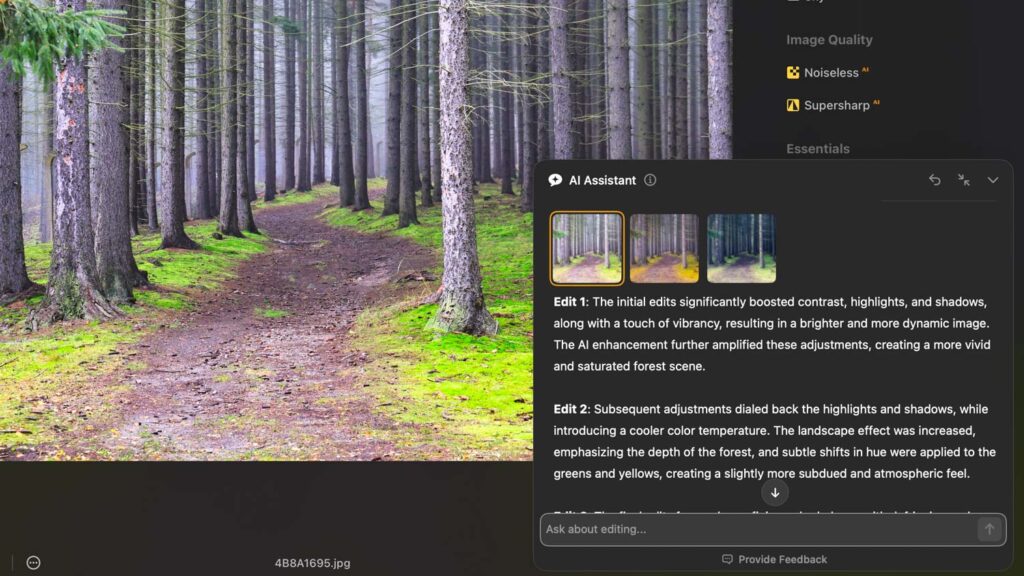
It’s very straightforward. The AI Assistant is basically a new chat window in the bottom right corner of the desktop app. The operation is simple: you just ask for specific edits using natural language. It works in various languages; I tested both Czech and English. While the Czech version had a few minor “hiccups,” they were mostly cosmetic.
There are basically two ways to use it:
- The Direct Approach: You ask Luminar for a specific (or general) edit, and it suggests three edited variants.
- The Advisory Approach: Ask which functions are available for a specific task. Instead of applying the edit, it suggests which tool you should use.
Option 1: “Enhance this photo”
“Enhance this photo” is the basic command. You can type it into the chat box or simply click the “Enhance this photo” button that Luminar suggests.
Within moments, three different versions of how the edit could look will appear. You also get a very precise description of what is in the photo and what the software did to it. I have to say, the accuracy of the scene descriptions is sometimes almost scary.

For example, when I was playing with a photo of my dog, the system recognized everything. For the first option, it wrote: Edit 1: The photo’s black and white Border Collie is enhanced with increased contrast and brightness, boosting the highlights and shadows to emphasize the dog’s fur and expression. The saturation is reduced slightly, and luminosity is increased to bring out the pink tongue.
You can then choose from the three variants. If you don’t like any of them, you can reset and start over—Luminar will suggest something slightly different every time. It generally hits the mark surprisingly well.
Option 2: Ask and get solutions
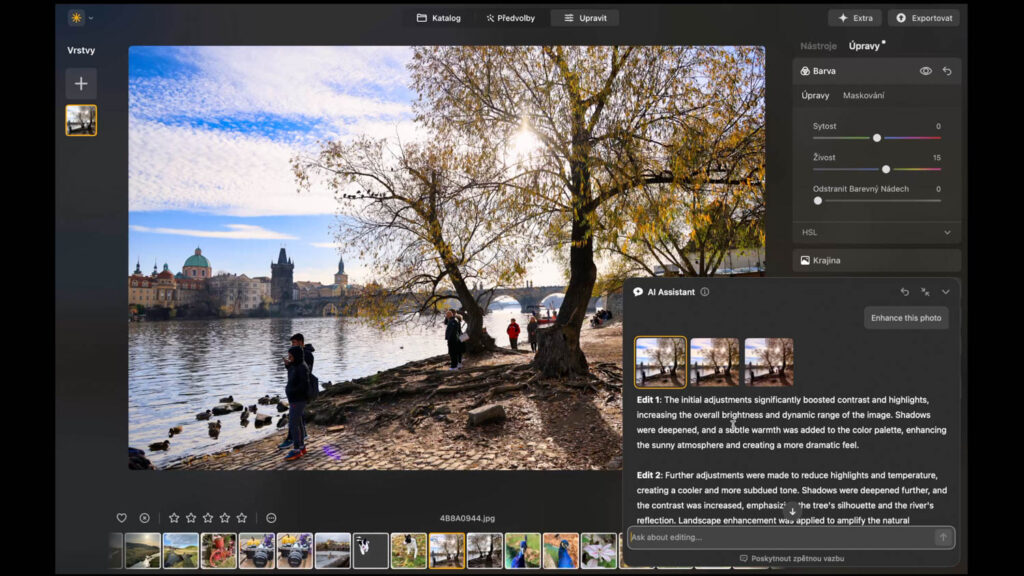
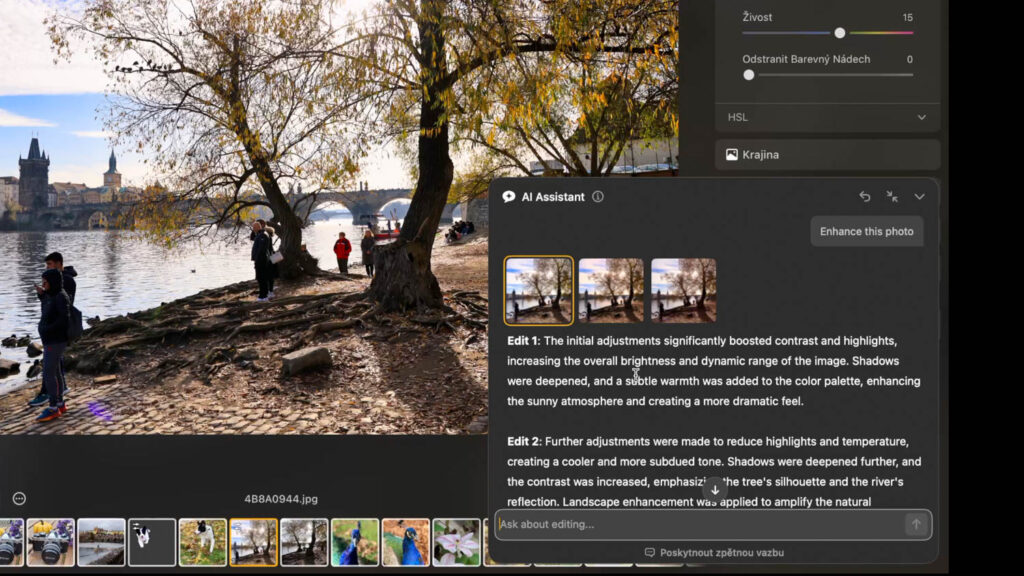
The second option is to ask how to do something rather than asking the AI to do it for you. You can see this clearly in the video and the screenshots on this page. For example, I can ask how to remove the background of a specific photo. The AI Assistant will suggest two ways to go about it—one being the “Background Removal” feature, the other being the standard “Erase” tool. With one click, you can jump straight into that tool and start working on your own.
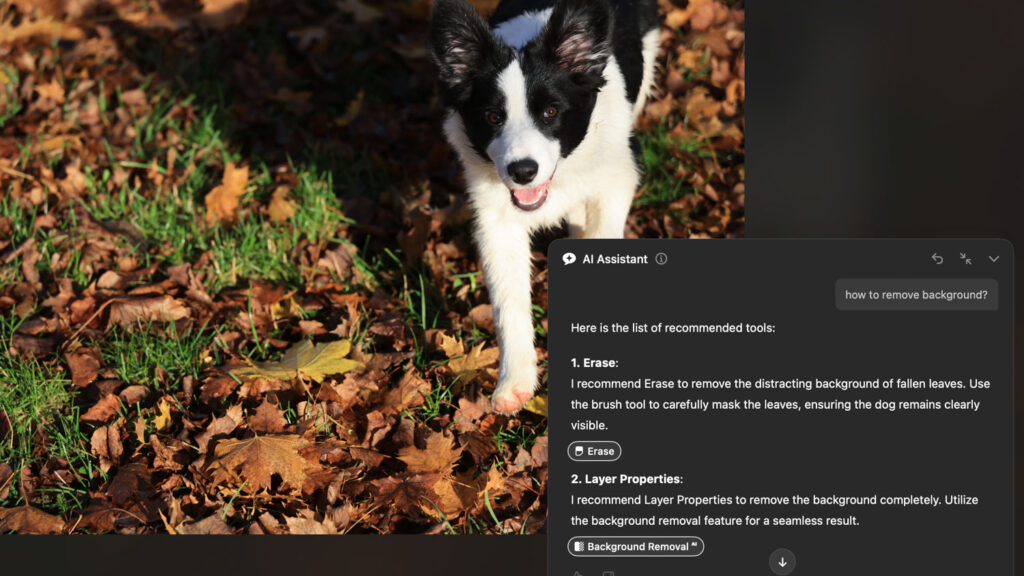

Magic #1: You can “edit” the edits
I generally dislike “auto-fix” buttons on phones or desktops. You press a button, the photo changes, and there’s no way back. Here, it’s completely different. All the edits Luminar Neo makes are immediately visible in the “Edits” panel. You can quickly go through them and adjust—turn something off, dial something back, or boost it. In short, Luminar Neo prepares the “recipe,” and you do the final seasoning.
This is what really hooked me. I think this is the ideal scenario for a huge number of users: AI starts, we finish.
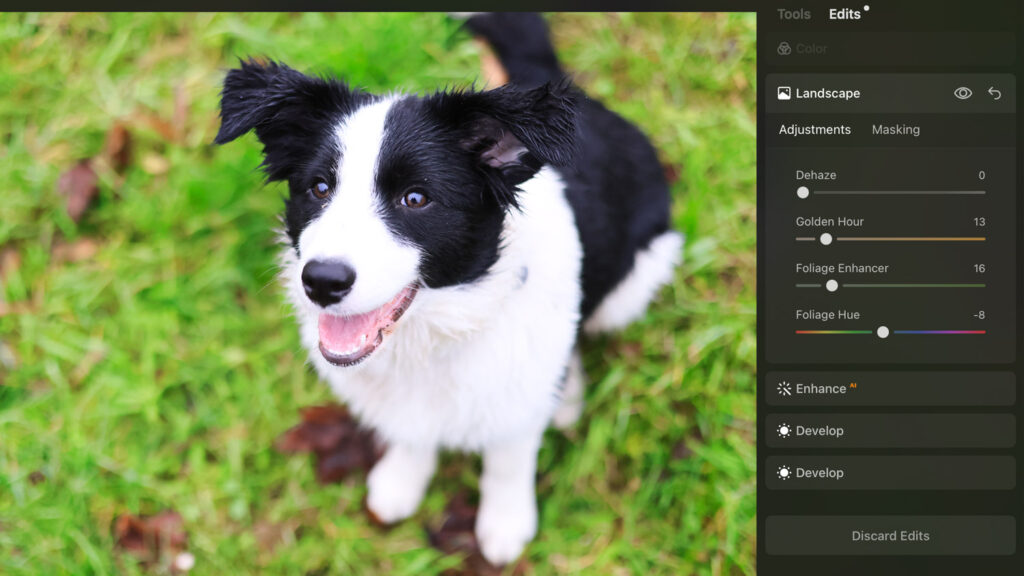
Magic #2: Discovering new features!
In just a few minutes, you’ll discover a range of functions and sliders you never even knew existed. Luminar Neo is a sophisticated tool—so sophisticated that it’s almost impossible for a human to keep track of every single feature.
But that’s changing now. In minutes, I learned how to use the “Foliage Enhancer” in the Landscape tab and several other functions I had either overlooked or forgotten about. That’s why I think the AI Assistant is a major milestone—it guides users toward tools that are too good to be ignored.
(And I’m also looking forward to finally discovering the other 95% of Photoshop’s features after 30 years of using it!)
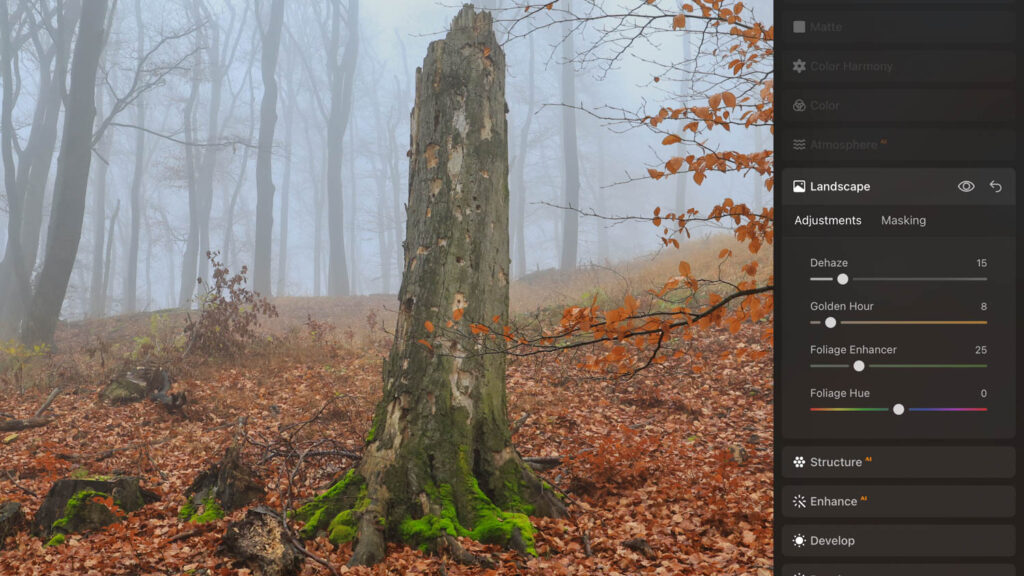
Summary: The program shows what it can do, but I stay in control
To sum up: it’s not really about Luminar Neo itself, but about the path it’s carving out. The key is that the algorithms evaluate exactly what to do with the photo and then offer three variants to choose from. Once you pick one, you can build on it. The edits aren’t baked-in; they are applied using traditional tools.
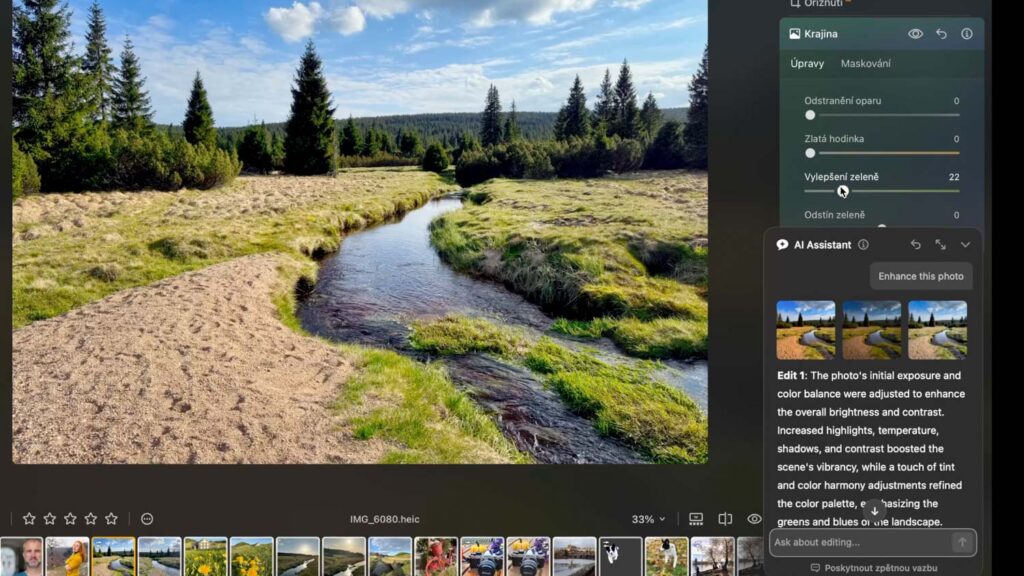
Every hour spent with the AI Assistant means the user is actually getting better at using the software. If this is what the future of AI photo editing looks like, I’m all for it!















Leave a Reply